Why your QR code won't scan (7 causes and how to fix them)
· Updated
By ToolsRacks Team · How-To Guides
QR codes fail in predictable ways — size, quiet zone, upscaling, contrast. The seven causes ranked by how often they turn out to be the problem.
The code worked on your screen. You sent the artwork to print, the flyers arrived, and now half the people who try it get nothing. QR codes fail in predictable ways, and almost none of those ways involve the code being generated wrongly.
The causes below are ordered by how often they turn out to be the problem in practice, starting with the one that accounts for the largest share of printed failures.
- Too small for the reading distance — the code needs roughly one tenth of the distance it will be scanned from.
- No quiet zone — the clear margin around the code is part of the code.
- Upscaled low-resolution image — a 256-pixel PNG blown up to poster size has soft, unreadable edges.
- Low contrast or inverted colours — dark modules on a light background is the only combination that works everywhere.
- Too much data — a long URL creates a dense grid that phones struggle to resolve at small sizes.
A QR code usually fails to scan because it is too small for the distance it is read from, because the white margin around it was cropped, or because a low-resolution image was scaled up for print. Contrast, curved surfaces and overly long encoded URLs account for most of the rest. Testing the final printed piece — not the screen preview — catches nearly all of these before they cost you a print run.
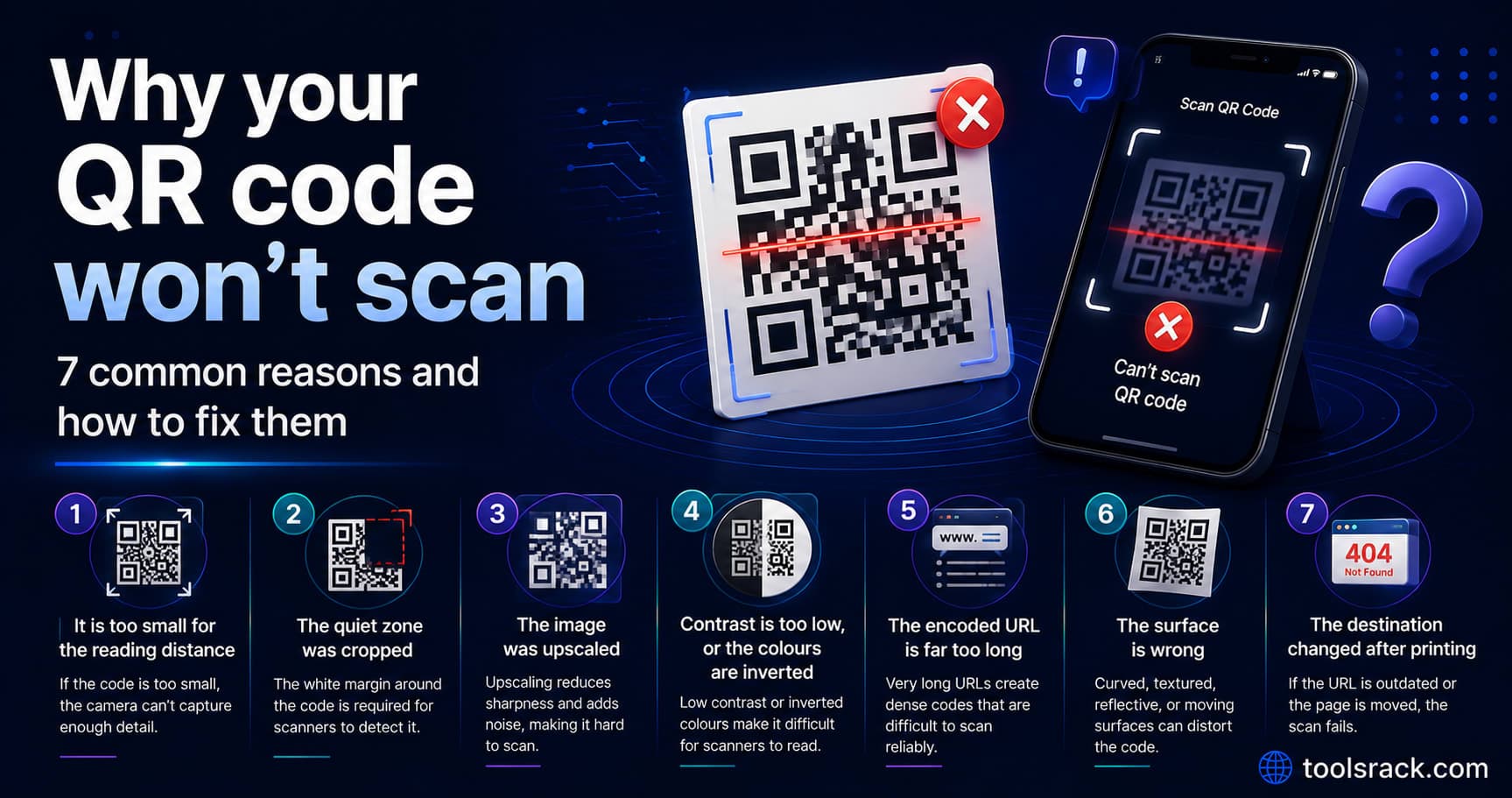
1. It is too small for the reading distance
The widely used field rule is that scan distance is roughly ten times the width of the code. A code 2 cm across is comfortable at about 20 cm. A poster read from three metres needs one around 30 cm across.
| Placement | Read from | Practical minimum |
|---|---|---|
| Business card | 15–25 cm | 2 cm |
| Menu or table tent | 25–40 cm | 2.5–4 cm |
| Product packaging | 20–30 cm | 2–3 cm |
| A4 flyer in hand | 30–60 cm | 3–6 cm |
| Wall poster | 1–3 m | 10–30 cm |
| Shop window | 2–4 m | 20–40 cm |
Designers routinely shrink codes to fit a layout. If the code has to be small, shorten the data it carries so the grid stays coarse — that is the only lever that helps at small sizes.
2. The quiet zone was cropped
The white margin around a QR code is not decoration. Scanners use it to find where the code begins. The specification calls for a clear border of four modules — four of the smallest squares in the grid — on all sides.
This gets destroyed in layout, not in generation. Placing a code flush against an image edge, a coloured panel, a border or a caption removes the margin the scanner needs. If your code sits on a busy background, add a white box behind it with generous padding.
3. The image was upscaled
A QR code is a grid of hard-edged squares. Scaling a small raster image up interpolates between pixels, which turns those hard edges into grey gradients — and a scanner reading a blurred boundary cannot tell where one module ends and the next begins.
Export at the largest size available rather than enlarging afterwards. Our free QR code generator produces PNGs from 128 up to 512 pixels, generated in your browser, which is enough for most print work at realistic sizes. If you need to fit the code into a specific layout, size it with the image resizer rather than dragging a corner in a document editor.
4. Contrast is too low, or the colours are inverted
Scanners expect dark modules on a light background. Three things break that:
- Inverted codes — light modules on a dark background. Some phones handle it, others do not, and you will not find out until the flyers are printed.
- Brand-colour codes on a coloured background. A mid-tone code on a mid-tone background may look fine to your eye and offer almost no contrast to a camera.
- Red or light colours. Older laser scanners read red as white and see nothing at all.
Black on white is boring and it works. If you must use colour, keep the modules very dark and the background very light, and test on several devices.
5. The encoded URL is far too long
Every additional character adds modules to the grid, and since the physical size is fixed, each module gets smaller. A URL carrying five UTM parameters can double the density of the code compared with a short link.
Encode the shortest URL you control and add tracking on the server side with a redirect. That keeps the grid coarse and gives you something else: the ability to change the destination later, which a printed static code otherwise cannot do.
6. The surface is wrong
The camera needs a flat, matte, evenly lit surface. These defeat it:
- Curves — bottles, cups, tubes. The grid distorts.
- Folds — a code across the fold of a leaflet is split in two.
- Gloss lamination — reflections wash out sections under overhead lighting.
- Dark or dim environments — restaurant tables in the evening are a classic failure spot.
- Fabric and textured stock — the pattern bleeds into the modules.
7. The destination changed after printing
Sometimes the code scans perfectly and the experience still fails, because the page it points to has moved. A static code encodes the URL permanently and cannot be edited once printed.
Two fixes. Either point the code at a URL on your own domain and set up a redirect — our .htaccess redirect generator produces the rule for Apache — or use a paid dynamic QR service, accepting that the code stops working if you stop paying.
It is also worth checking that the destination is genuinely usable on a phone, since essentially every scan arrives on mobile. A quick page speed check on the mobile setting will tell you whether people are landing on something that takes eight seconds to appear.
How to test properly before you print
- Print at final size on the real stock. A screen test proves nothing about ink on matte paper.
- Use at least three phones, including one older Android device. Camera quality varies enormously.
- Test in the actual lighting where it will be used — a dim restaurant, a bright shop window.
- Scan from the real distance, not from 10 cm away.
- Try it at an angle. People do not stand square to a poster.
- Label it. Codes with a short line of text explaining what they do get scanned far more often than bare ones.
QR code questions people ask
Why does my QR code work on my phone but not on someone else's?
Usually a marginal code — barely enough contrast, size or quiet zone — that a good camera can recover and an older one cannot. Marginal codes are not a device problem, they are a design problem that only shows up on weaker hardware.
Do QR codes expire?
Static codes never expire; the pattern encodes the data permanently. What expires is the page it points to. Dynamic codes from a paid service stop working if the subscription lapses.
Can I put a logo in the middle?
Often yes, because error correction can recover a damaged portion of the code — commonly around 15% at the default level. Keep the logo small and centred, and test heavily. Every pixel of logo is error-correction budget you can no longer spend on smudges and poor lighting.
What size should a QR code be on a business card?
About 2 cm square, with clear white space around it and a short encoded URL. Below roughly 1.5 cm, scan rates fall off quickly on older phones.
Does printing in colour reduce scan rates?
It can, and the risk rises as contrast falls. If brand colour matters, use a very dark version of it on white rather than a mid-tone on a tinted background.
Why does my code look different every time I generate it?
Because the encoder can choose different mask patterns and versions for the same data. Different-looking codes that both scan are both correct.
The short answer
Make it bigger than you think it needs to be, leave white space around it, keep it dark on light, encode a short URL, and test the printed piece on a cheap phone. That covers almost every failure people actually run into.