Internet speed test: check your real connection speed
By ToolsRacks Team · How-To Guides
Run a free internet speed test to check your real download and upload speed. See if your ISP delivers what you pay for. No signup needed.
You're paying for "100 Mbps broadband" — but is that what you're actually getting? Most people assume their internet is running at full speed, yet real-world performance is often far below the advertised rate. Network congestion, router placement, WiFi interference, and even the time of day can quietly rob you of the speed you're paying for every month.
This matters more than ever in 2025. Whether you're working from home, streaming 4K video, gaming online, or joining video calls, your actual internet speed directly affects your daily experience. A slow connection isn't just frustrating — it costs you time and productivity every single day.
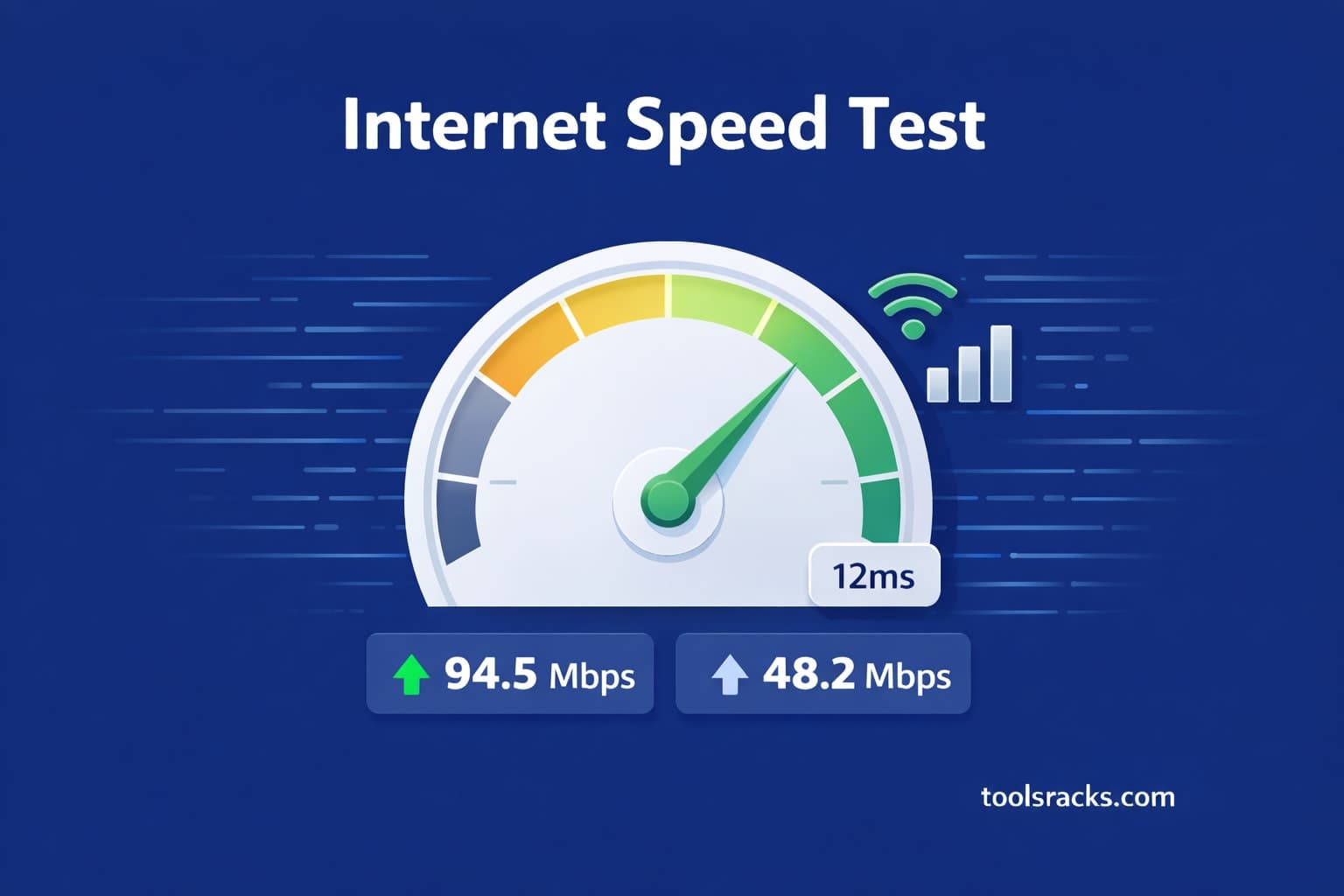
The good news is that checking your speed takes under 30 seconds. A free internet speed test gives you a clear, accurate picture of your real connection performance. The ToolsRacks Speed Test runs entirely in your browser — no app download, no login, no data stored — and delivers instant results for download speed, upload speed, ping, and jitter.
What is an internet speed test?
An internet speed test is a diagnostic tool that measures the real-time performance of your internet connection by sending and receiving data between your device and a test server, then calculating how fast that data travels in both directions.
Think of it like a speedometer for your internet. Just as a car speedometer tells you how fast you're actually moving — not how fast the engine could theoretically go — a speed test tells you the true speed your connection is delivering right now, not the maximum your ISP advertises.
A full speed test measures four key metrics. Download speed is how fast data arrives at your device — this affects streaming, browsing, and loading files. Upload speed is how fast you send data out — critical for video calls and cloud uploads. Ping (or latency) measures the round-trip time for a data packet in milliseconds — lower is better for gaming and calls. Jitter measures how consistent your ping is over time — high jitter causes choppy video calls even when your average ping looks fine.
Why your internet speed matters
- Streaming quality depends on download speed. HD video needs at least 5 Mbps, and 4K Ultra HD requires 25 Mbps minimum. If your speed dips below these thresholds, you get buffering or automatic quality drops.
- Video calls need both download and upload speed. A stable HD video call requires around 5 Mbps in each direction. Poor upload speed is one of the most common reasons your video call looks fine on your end but pixelated to others.
- Online gaming is highly sensitive to ping and jitter. Download speed matters less for gaming than latency. Under 20ms ping is ideal; anything above 100ms causes noticeable lag in fast-paced games.
- Working from home requires reliable upload speed. Uploading documents to cloud storage, sharing screens, and sending large files all depend on solid upload performance — often the metric ISPs advertise least.
- Multiple users multiply your bandwidth needs. Every device streaming, browsing, or downloading shares your total connection. A family of four can easily need 100–200 Mbps to avoid slowdowns.
- Knowing your real speed gives you leverage with your ISP. If your speed test consistently shows 40 Mbps on a 100 Mbps plan, you have documented evidence to request a fix or a bill credit.
How to run an internet speed test
Running an accurate speed test takes less than a minute. Follow these steps to get the most reliable result possible.
- Close background applications. Pause any active downloads, stop streaming video, and close apps that sync in the background like cloud storage or software updaters. These consume bandwidth and will skew your results lower.
- Connect via Ethernet if you can. A wired connection eliminates WiFi variables like signal interference, distance from the router, and competing devices. If Ethernet isn't available, move as close to your router as possible before testing.
- Disconnect unused devices. Every device connected to your network shares your bandwidth. Temporarily disconnecting smart TVs, tablets, and other devices gives you a cleaner baseline measurement.
- Open the speed test tool. Go to the ToolsRacks Speed Test in your browser. No installation or account is required — it runs instantly on any device.
- Start the test and wait. Click the Start button and wait 15–30 seconds for the test to complete. Avoid touching the device or running anything during the test.
- Record your results. Note all four numbers: download speed, upload speed, ping, and jitter. For a reliable picture, run the test 2–3 times and compare results.
- Compare against your plan. Check what speed your ISP promises in your contract. According to Speedtest's Global Index, the average user receives 10–20% below their advertised speed during peak hours — if you're seeing significantly more than that gap, it's worth investigating.
Tips to get accurate speed test results
Test at different times of day
Network congestion is real and predictable. Evening hours between 6pm and 10pm are typically the slowest as more people use the network simultaneously. Run your speed test in the morning, afternoon, and evening to get a complete picture of your connection's actual performance throughout the day.
Use a wired Ethernet connection
WiFi introduces variables that have nothing to do with your ISP — wall thickness, router placement, interference from neighboring networks, and the age of your wireless adapter all affect WiFi speed. For the most accurate measurement of what your ISP is actually delivering, plug directly into your router with an Ethernet cable.
Test from multiple devices
If one device consistently shows slower speeds, the problem may be that device's network card rather than your connection. Testing on a laptop, phone, and desktop helps isolate whether the issue is device-specific or connection-wide.
Restart your router before testing
Routers accumulate memory load and connection tables over time. A quick restart clears temporary issues and often improves measured speeds. Wait 60 seconds after restarting before running your test for best results.
Understand Mbps vs MBps
Speed tests report speeds in Mbps (Megabits per second), but file sizes are shown in MB (Megabytes). There are 8 bits in a byte, so a 100 Mbps connection downloads at roughly 12.5 MB per second. A 1 GB file on that connection takes about 80 seconds — which surprises many people who expect faster downloads from a "fast" plan.
Common mistakes to avoid when testing internet speed
- Testing while other devices are active. Running a speed test while someone else streams Netflix or downloads a game will show artificially low results. Those results reflect shared usage, not your connection's actual capacity.
- Only testing once. A single result can be misleading. Network conditions fluctuate constantly. Run at least three tests at different times before drawing conclusions about your connection's true performance.
- Confusing WiFi speed with internet speed. A slow WiFi connection between your device and router will cap your speed test result, even if your ISP is delivering full speed to the router. Always test via Ethernet to measure your actual internet speed accurately.
- Ignoring upload speed and ping. Most people only check download speed, but upload speed is critical for video calls and cloud work, and ping determines gaming and call quality. Review all four metrics, not just the headline download number.
Frequently asked questions about internet speed tests
How accurate is an online speed test?
A speed test accurately measures the speed between your device and the test server at that moment. It reflects real conditions including network load, your hardware, and your connection path. Results can vary slightly between tests due to network fluctuation, so running 2–3 tests and averaging them gives the most reliable picture.
What is a good download speed for home use?
For a single user, 25 Mbps is the minimum comfortable speed for HD streaming and browsing. A household of 2–4 people benefits from 100 Mbps or more, especially if multiple people stream, game, or work from home simultaneously. For 4K streaming on multiple screens, 200 Mbps is a practical target.
Why is my speed test fast but streaming still buffers?
A fast speed test with slow streaming usually points to one of two causes. Your ISP may be throttling specific types of traffic — particularly video streaming — while leaving general test traffic unthrottled. Alternatively, the streaming platform's own servers may be congested. Check the platform's status page to rule that out first.
What ping is good for online gaming?
Under 20ms is excellent and gives a competitive advantage in fast-paced games. Under 50ms is perfectly playable for most games. Between 50–100ms you may notice minor delays. Above 100ms causes visible lag that impacts gameplay, and above 150ms is generally considered unplayable for real-time competitive games.
How often should I run an internet speed test?
Run a speed test whenever you notice slowdowns, before and after contacting your ISP about performance issues, and periodically as a baseline check — once a month is reasonable. If you're experiencing consistent problems, test at different times of day for a week to identify patterns tied to peak usage hours.
Conclusion
Your internet speed has a direct impact on everything you do online — from streaming and gaming to working from home and video calls. Don't assume your ISP is delivering what you're paying for. A quick speed test gives you real data: your actual download speed, upload speed, ping, and jitter, right now. If your results consistently fall well below your advertised plan, you have clear grounds to contact your provider and demand a resolution.
The whole process takes under a minute. Try the free ToolsRacks Internet Speed Test — no account needed, no app to install, works instantly in any browser on any device.