Convert images to WebP, PNG or JPG online free
By ToolsRacks Team · Image Tools
Need to convert an image from JPG to WebP or PNG to JPG? Use our free online image converter — any format, instant results, no account needed.
Every time you upload an image to your website and your Google PageSpeed score drops, the problem is often the format. A JPEG that looks fine on your screen may be three times larger than it needs to be. In 2025, image format is one of the most overlooked factors in web performance — and it's one of the easiest to fix.
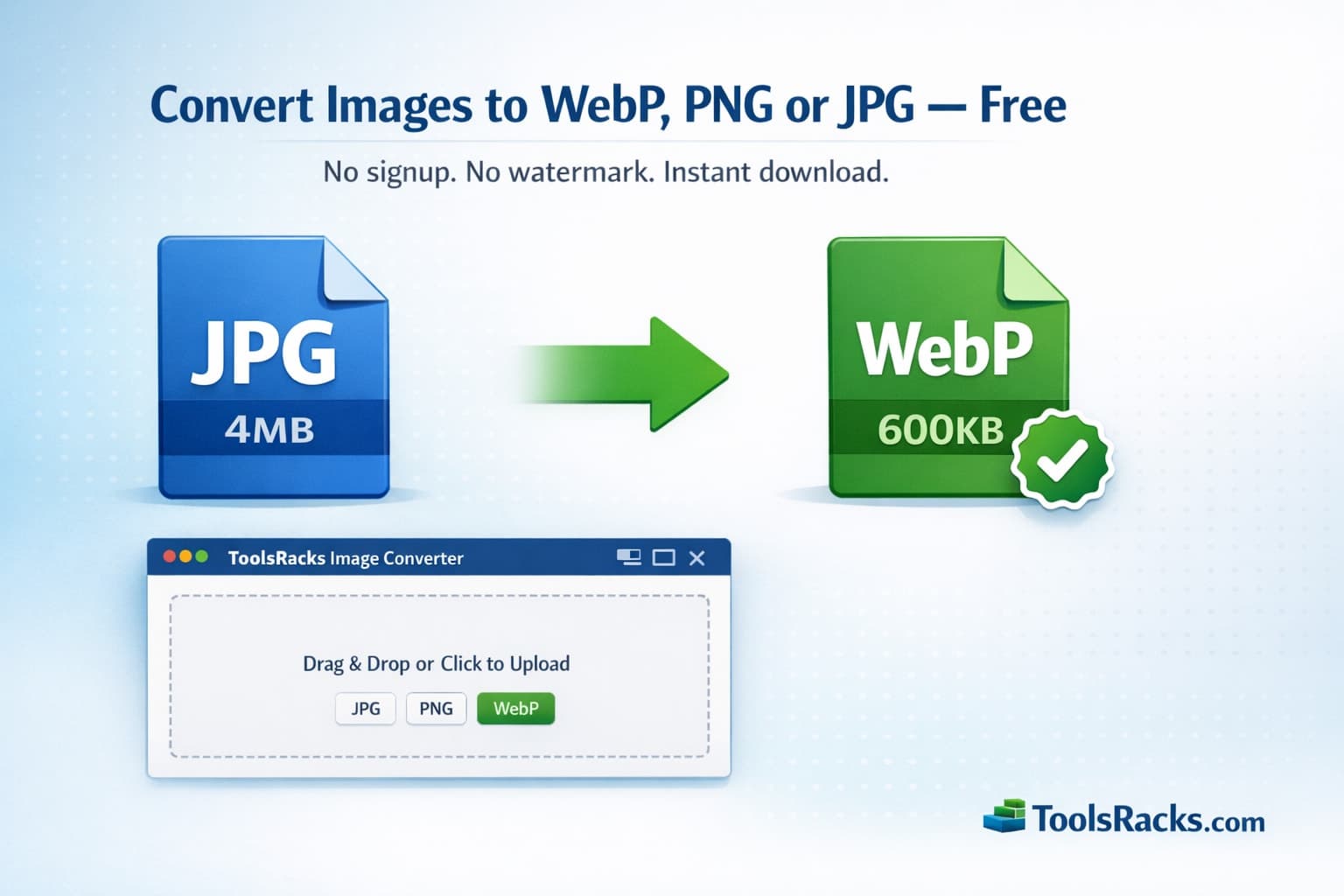
The format you choose affects file size, browser compatibility, transparency support, and how fast your pages load. Choosing the wrong format costs you loading speed, search rankings, and user experience. A 4MB PNG banner can become a 600KB WebP with zero visible quality difference — that kind of saving adds up across every image on your site.
The good news: you don't need Photoshop, a plugin, or a developer to fix this. With the free ToolsRacks Image Converter, you can convert image to WebP online free in under 30 seconds — no account, no software, no watermarks.
What is image format conversion?
Image format conversion is the process of changing an image file from one format to another — for example, turning a JPG into a WebP or a PNG into a JPG — while preserving as much of the original visual quality as possible. Think of it like translating a document from one language to another: the meaning stays the same, but the structure changes to suit a different audience or purpose.
Different formats store pixel data differently. Some use lossy compression (like JPEG), which discards some data to achieve smaller sizes. Others use lossless compression (like PNG), which preserves every pixel. WebP supports both modes. When you convert between formats, you are essentially re-encoding the pixel data using a different set of rules, which changes the file size, the supported features (such as transparency), and browser compatibility.
Why image format conversion matters
- Faster page load speeds: Switching from PNG or JPEG to WebP can reduce file sizes by 25–35%, directly cutting load time and improving Core Web Vitals scores.
- Better SEO rankings: According to Google, pages that load in under three seconds have significantly lower bounce rates. Smaller images contribute directly to that goal.
- Correct transparency handling: JPEG does not support transparent backgrounds. Converting a logo to PNG or WebP ensures the background stays transparent instead of turning white.
- Broader software compatibility: Some older design tools and print services do not support WebP. Converting back to JPG or PNG ensures your image opens everywhere.
- Storage and bandwidth savings: Lighter images mean lower hosting costs, especially if you serve thousands of images per day.
- Future-proof formats: WebP and AVIF are the formats recommended by Google Lighthouse and web performance experts in 2025. Converting now saves rework later.
How to convert image to WebP online free (step by step)
- Open the tool — Go to the ToolsRacks Image Converter. No signup or download required.
- Upload your image — Click the upload area or drag and drop your file. Supported input formats include JPG, JPEG, PNG, WebP, GIF, and BMP.
- Select the output format — Choose your target format from the dropdown menu. Options include WebP, JPG, PNG, GIF, and BMP.
- Click Convert — The tool processes your image instantly in your browser.
- Download your file — Click the download button to save the converted image to your device. No email required and no watermark added.
ToolsRacks processes everything directly in your browser — your images are never uploaded to a server or stored anywhere. Your files stay private and on your device at all times.
Tips for choosing the right image format
Use WebP for all website images
WebP is supported by all modern browsers including Chrome, Firefox, Safari, and Edge. It delivers 25–35% smaller files than equivalent JPEG and 26% smaller than PNG, making it the best choice for blog images, banners, thumbnails, and product photos. In 2025, switching to WebP is standard practice for any site targeting good Core Web Vitals scores.
Use PNG when transparency is required
PNG uses lossless compression, meaning no pixel data is discarded. This makes it ideal for logos, icons, screenshots, and any image with a transparent or semi-transparent background. If your image needs a cut-out effect or a transparent layer, PNG (or WebP) is the right format — JPEG will fill the transparent area with a solid white background.
Use JPEG for photographs shared outside the web
JPEG is the most universally compatible image format. For photos sent by email, printed at a lab, or uploaded to platforms that don't yet support WebP, JPEG remains the safest option. It achieves excellent compression for photographic content where minor quality loss is not visible to the human eye.
Avoid BMP and TIFF on the web
BMP and TIFF are uncompressed formats designed for editing workflows, not for delivery. A BMP version of a photo can be 10–20 times larger than its JPEG equivalent. Using either format on a public website will cause slow load times and fail most web performance audits. Always convert these to WebP, JPG, or PNG before publishing.
Match quality settings to use case
When converting to lossy formats like JPEG or WebP, quality settings matter. For most web images, a quality level of 75–85% delivers excellent visual results at a fraction of the full file size. For product photography where fine detail matters, use 85–90%. Going above 90% rarely improves perceived quality but adds significant file size.
Common mistakes to avoid
- Converting PNG to JPEG and losing transparency: JPEG does not support transparent backgrounds. If you convert a logo or icon with a transparent layer to JPEG, that transparency becomes a white or black fill. Always convert transparency-dependent images to PNG or WebP instead.
- Re-converting a lossy file multiple times: Each time you convert a JPEG to another lossy format and back, quality degrades slightly. If you need to make multiple edits, keep a lossless master copy (PNG or original RAW) and export the final version once.
- Ignoring browser support when using AVIF: AVIF is a next-generation format with excellent compression, but support is still not universal across all browsers and platforms. WebP is the safer choice for broad compatibility in 2025 until AVIF adoption catches up.
- Uploading the original oversized file to the converter: Image conversion changes the format, not the dimensions. A 6000×4000 pixel image converted to WebP is still 6000×4000 pixels. If you also need to reduce dimensions, use the ToolsRacks Image Resizer in addition to converting the format.
Frequently asked questions
Does converting to WebP reduce image quality?
Not visibly, at typical quality settings. WebP achieves smaller file sizes than JPEG or PNG while maintaining the same or better visual quality at equivalent settings. For example, a JPEG at 80% quality and a WebP at 80% quality will look nearly identical side by side, but the WebP file will be roughly 30% smaller. You can adjust the quality level in the converter to find the right balance for your use case.
Will my image's transparent background be preserved after conversion?
It depends on the output format. If you convert to WebP or PNG, transparency is fully preserved. If you convert to JPEG, the transparent areas will be replaced with a solid white background because JPEG does not support transparency. Always choose WebP or PNG when your image requires a transparent or cut-out background.
Can I convert multiple images at once?
Yes, the ToolsRacks Image Converter supports batch uploads. You can upload several files at once and convert them all to the same target format in a single session. This is useful when preparing a full set of website images or product photos for publishing.
Is there a file size limit for the converter?
There is no strict hard limit. Very large files — such as high-resolution RAW exports or large BMP files — may take a few additional seconds to process, but the tool handles them without errors. If you are working with extremely large files, make sure you have a stable internet connection while the conversion completes.
Does the tool work on mobile devices?
Yes. The ToolsRacks Image Converter is fully responsive and works on all modern smartphones and tablets. You can upload images directly from your phone's camera roll, convert them to your chosen format, and download the result — all without installing any app.
Conclusion
Choosing the right image format is one of the simplest, highest-impact changes you can make to improve website speed and SEO performance. WebP is the clear choice for modern web delivery. PNG is the right pick for transparency. JPEG remains the safest option for universal compatibility. Converting between formats takes less than a minute and requires no technical expertise or software.
Try the free ToolsRacks Image Converter right now — no account needed, works instantly in your browser, and your files never leave your device.