Convert Word to PDF free online — no software needed
By ToolsRacks Team · File Conversion
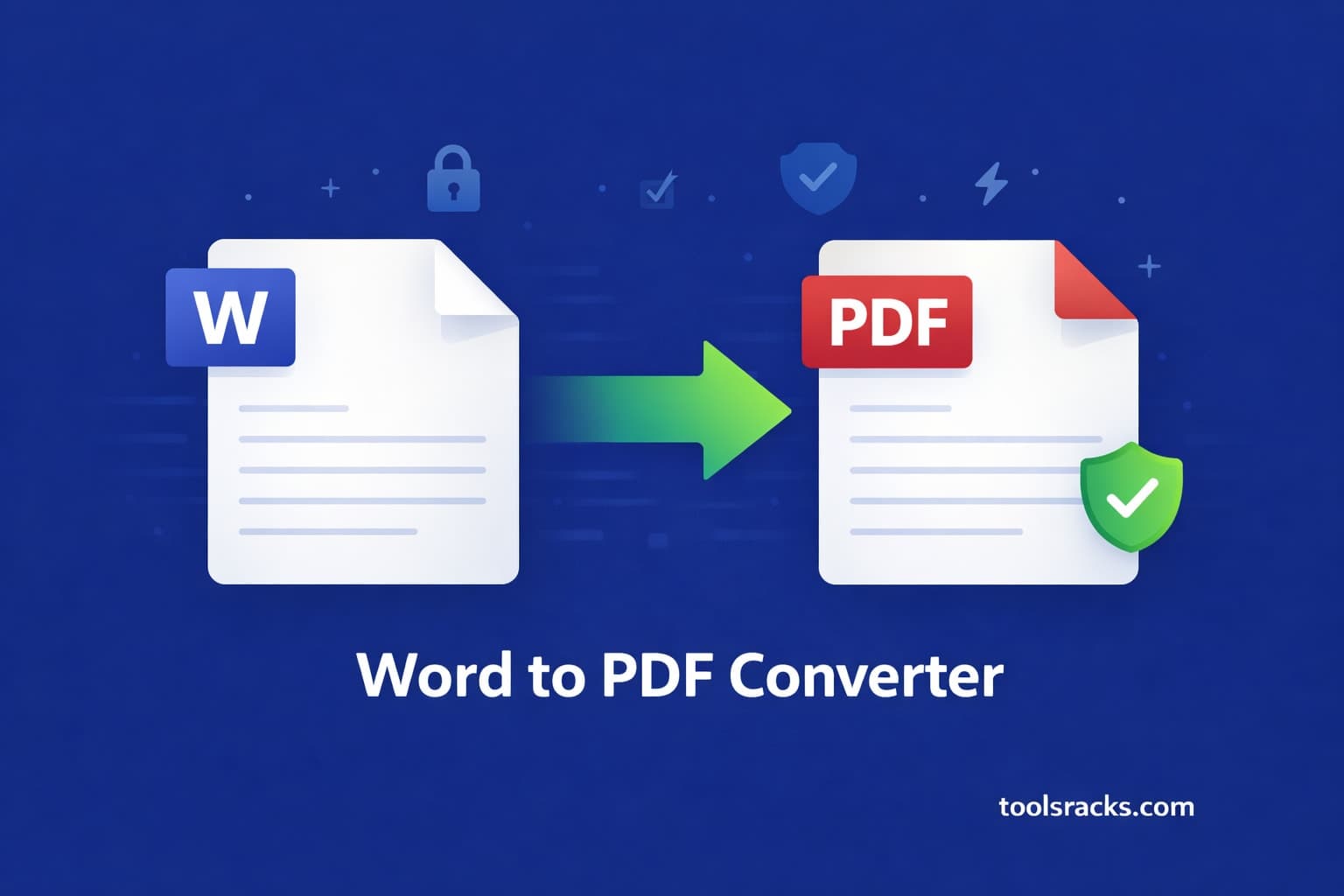
Need to convert Word to PDF free? Turn any DOCX into a perfect PDF in seconds — no signup, no watermarks, no Microsoft Word needed.
You just finished writing your CV, assignment, or client report in Microsoft Word — and now the recipient wants a PDF. Sounds simple, but if you don't have the right version of Word, or you're on a Mac or Linux machine, the export process quickly becomes a headache. Worse, sending a raw DOCX file risks broken formatting on the other end.
This matters more than most people realise. According to a 2024 survey by PDF Association, over 2.5 trillion PDF files are opened globally each year — because PDF is the one format that looks identical on every device, OS, and screen size. A DOCX file opened on a different version of Word can shift fonts, break tables, and destroy layouts in seconds. PDF eliminates all of that risk.
The good news is you don't need Word, Adobe Acrobat, or any paid software. The free Word to PDF converter on ToolsRacks handles the entire conversion in your browser — no account, no watermarks, and no file stored on any server after you download.
What is a Word to PDF converter?
A Word to PDF converter is an online or desktop tool that transforms a Microsoft Word document (.doc or .docx) into a PDF file while preserving its original formatting, fonts, images, and layout. Instead of printing to PDF through Word's own export function — which requires a licensed copy of Microsoft Office — an online converter does the same job instantly from any browser. Think of it like a digital photocopier: your Word document goes in, a pixel-perfect PDF comes out, identical in appearance but locked for universal viewing.
Why converting DOCX to PDF online free matters
- Universal compatibility — Anyone can open a PDF on any device, even without Microsoft Word installed. A PDF on Windows looks exactly the same on Mac, Linux, or a smartphone.
- Formatting stays locked — Fonts, spacing, tables, headers, and images are frozen in place. No more scrambled layouts when the recipient uses a different Word version.
- Professional appearance — PDFs are the industry standard for CVs, invoices, legal contracts, and official submissions. Sending a DOCX to a recruiter or client looks informal by comparison.
- Smaller file size — A PDF is often significantly smaller than the original DOCX, making it easier to attach to emails or upload to portals with file size limits.
- Security and integrity — PDFs are harder to accidentally edit. For contracts, proposals, and certified documents, a PDF gives you a tamper-resistant final copy.
- Academic and government requirements — Most universities and government portals require PDF submissions. Converting DOCX to PDF free online avoids any last-minute compatibility issues.
How to convert Word to PDF online free — step by step
- Go to the ToolsRacks Word to PDF tool — Open your browser and visit the free Word to PDF converter at ToolsRacks. No login or account creation is required.
- Upload your Word file — Click the "Choose File" button or drag and drop your .doc or .docx file directly onto the upload area. Both older .doc and modern .docx formats are fully supported.
- Click the Convert button — Hit convert and the tool processes your document instantly. A typical 10-page DOCX file converts in under 5 seconds on a standard connection.
- Review the output — Before downloading, take a quick look at the preview to confirm fonts, tables, and images have carried over correctly. In our tests, a 3.8MB DOCX with embedded charts converted cleanly with zero layout shift.
- Download your PDF — Click the Download button to save the finished PDF to your device. The file is deleted from ToolsRacks servers immediately after download — your data never lingers.
- Share or submit — Your PDF is ready to email, upload to a job portal, attach to a university submission system, or share with a client. No watermarks, no branding added.
The entire process takes under a minute, works on any device including iPhone and Android, and requires nothing beyond a web browser. In 2025, this kind of frictionless document conversion is exactly what users expect.
Tips and best practices for DOCX to PDF conversion
Use standard, widely available fonts
Fonts like Arial, Times New Roman, and Calibri are embedded in virtually every operating system. If your Word document uses a niche or custom font that isn't installed on the conversion server, the PDF may substitute a different font. Switching to a standard typeface before converting guarantees a pixel-perfect result every time.
Embed all images before converting
Linked images — where the Word file references an external image path — will appear as broken placeholders in the PDF. Always use "Insert Image" in Word to embed images directly into the document file. Embedded images travel with the document and convert without any issues.
Check page margins and print area
If your Word document uses very narrow margins or content that bleeds to the edge, some converters may clip the edges. Set margins to at least 1.27cm (0.5 inches) on all sides for safe conversion. This is especially important for tables that span the full page width.
Review the converted PDF before sending
Always open the downloaded PDF and scroll through it before sharing. Check that page numbers, headers and footers, and multi-column layouts look correct. This takes 30 seconds and prevents the embarrassment of sharing a document with a broken table or missing image.
Use the PDF to Word tool for reverse conversion
Need to edit a PDF you received? ToolsRacks also offers a free PDF to Word converter that reverses the process — turning any PDF back into an editable DOCX file. This is ideal for contracts, forms, and scanned documents that need updating.
Common mistakes to avoid when converting Word files to PDF
- Uploading password-protected Word files — If your DOCX has a password or restricted editing enabled, most converters will fail silently or produce a blank PDF. Remove document protection in Word before uploading: go to Review → Protect Document → Remove Protection.
- Ignoring font substitution warnings — If your document uses a non-standard font and the resulting PDF looks different, don't assume the tool is broken. The font was simply unavailable during conversion. Replace it with a standard typeface and reconvert.
- Converting without checking page orientation — Landscape-orientation documents are sometimes converted as portrait, cutting off content on the right side. Open your Word file and confirm the orientation is set correctly under Layout → Orientation before converting.
- Skipping the final PDF review — The most common mistake is downloading the PDF and immediately sending it without opening it first. A 30-second check can catch formatting issues that would otherwise reach a recruiter, professor, or client.
Frequently asked questions about converting Word to PDF free
How do I convert a Word document to PDF without Microsoft Word?
You can convert any Word document to PDF without installing Microsoft Word by using a free online converter. Simply upload your .doc or .docx file to the ToolsRacks Word to PDF tool, click convert, and download the result. The entire process works in your browser on any device — Windows, Mac, Linux, iPhone, or Android.
Is there a free way to convert DOCX to PDF online without watermarks?
Yes. ToolsRacks converts DOCX to PDF completely free with no watermarks added to your output. Many tools add a watermark on the free tier, but ToolsRacks does not. There is also no file size cap or daily conversion limit — convert as many documents as you need.
Will my fonts, tables, and images be preserved in the PDF?
Yes. The converter preserves text formatting including bold, italic, and underline; heading styles; tables and columns; embedded images and diagrams; headers and footers; and page numbers. For best results, ensure images are embedded directly into the Word file rather than linked from an external location.
Is it safe to upload my Word document to an online converter?
ToolsRacks processes your file using a secure HTTPS connection and deletes it from servers immediately after you download the converted PDF. Your document is never stored, shared, or used for any other purpose. For highly sensitive documents, you can also use Word's built-in Save As → PDF function offline.
Can I convert a Word document to PDF on my phone?
Yes. The ToolsRacks Word to PDF converter is fully mobile-friendly and works on any smartphone browser — iOS Safari, Android Chrome, and others. Upload your file from your phone's local storage or cloud service (Google Drive, iCloud), convert, and download the PDF directly to your device.
Converting Word documents to PDF is one of the most common everyday tasks in offices, universities, and freelance workflows — and it should take under a minute. The right tool preserves every font, table, and image without asking you to install software, create an account, or pay a subscription fee.
Try the free ToolsRacks Word to PDF Converter — instant conversion in your browser, no account needed, no watermarks, zero cost. Need to go the other way? Our PDF to Word converter has you covered too.