Convert PDF to Word online free — editable DOCX in seconds
By ToolsRacks Team · File Conversion
Need to edit a PDF? Convert PDF to Word online free and get a fully editable DOCX in seconds — no Adobe Acrobat, no signup, no watermarks.
You've just received an important contract, a government form, or a resume — and it's a PDF. You need to make changes, but every time you try to edit it, you're stuck staring at a locked file. Sound familiar? In 2025, this is one of the most common frustrations for students, professionals, and freelancers alike.
The problem isn't just inconvenience. When you can't edit a PDF, you end up retyping entire documents from scratch, wasting hours that could be spent on actual work. For scanned documents, the situation is even worse — the text isn't even selectable, let alone editable.
The good news: you don't need expensive software like Adobe Acrobat Pro to fix this. The ToolsRacks PDF to Word Converter lets you convert PDF to Word online free in just a few clicks — no account, no watermarks, no hassle. This guide walks you through everything you need to know.
What is a PDF to Word converter?
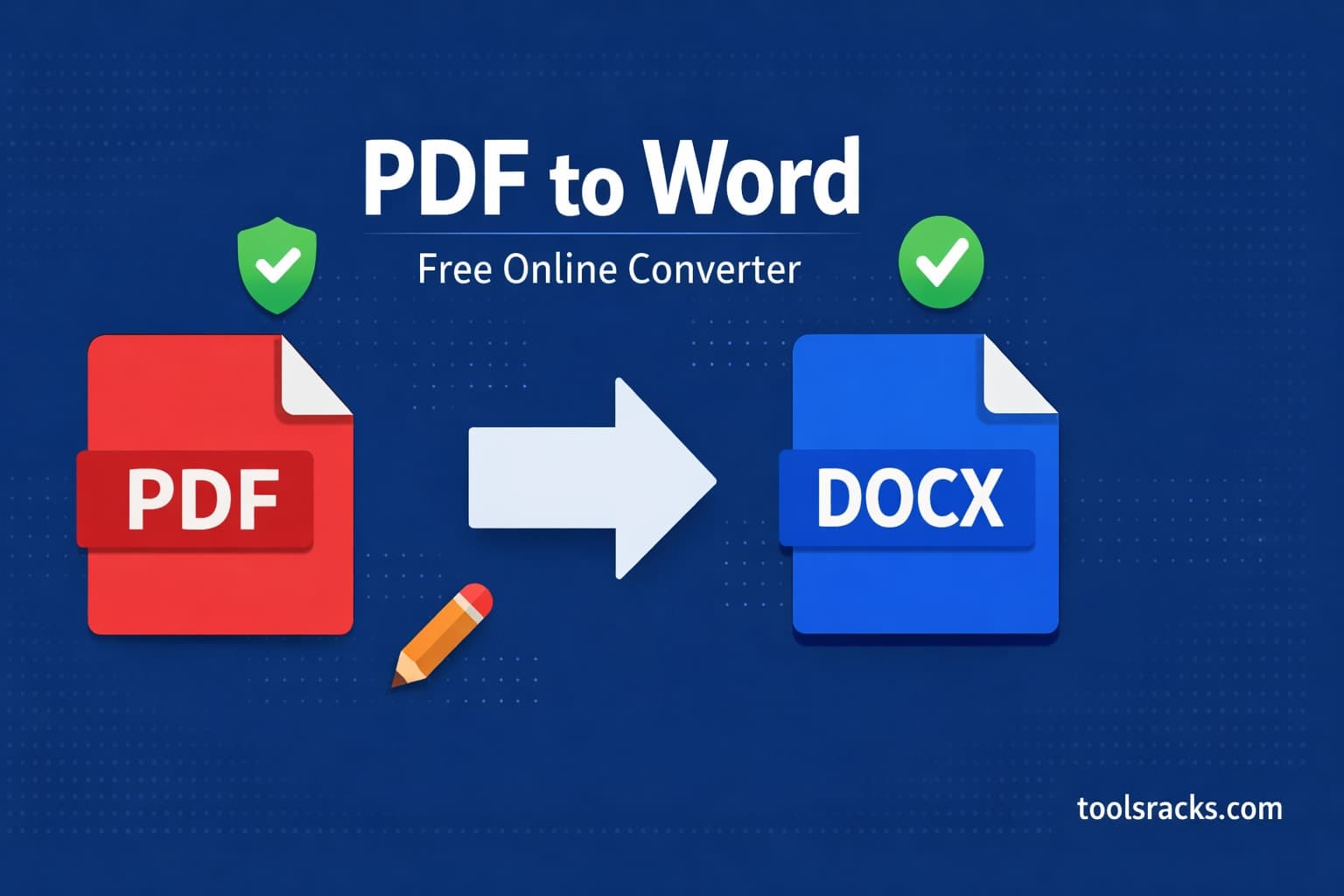
A PDF to Word converter is an online tool that transforms a PDF file (.pdf) into an editable Word document (.docx). Instead of a locked, view-only file, you get a fully editable document you can open in Microsoft Word, Google Docs, or LibreOffice and modify freely.
Think of it like this: a PDF is a photograph of your document — everything looks perfect, but you can't change anything. A Word document is like the original painting — you can edit every brushstroke. A PDF to Word converter essentially unpacks the photograph back into an editable format, preserving your original text, tables, and layout as closely as possible.
Modern converters in 2025 also include OCR (Optical Character Recognition) technology, which means they can extract text even from scanned PDFs — documents that are essentially images of text.
Why you need to convert PDF to Word — key benefits
- Edit contracts and legal documents: Received an agreement as a PDF? Convert it to Word, make your revisions, and send it back — no retyping required.
- Recover lost Word files: If your original .docx is gone but you still have the PDF, a converter gives you back an editable version instantly.
- Repurpose business reports: Extract data, quotes, or sections from PDF reports and reformat them for new presentations or documents.
- Translate documents more easily: Translation tools and services work far better with editable Word files than with locked PDFs.
- Fill in non-interactive PDF forms: Some PDF forms do not have fillable fields. Convert to Word, fill in your details, and save.
- Save time and money: Free online converters eliminate the need for a paid Adobe Acrobat subscription — which costs over $14/month in 2025.
How to convert PDF to Word online free — step by step
Using the ToolsRacks PDF to Word Converter takes under a minute. Here is exactly how to do it:
- Open the converter tool — Go to toolsracks.com/pdf-to-word. No account creation or login is required.
- Upload your PDF file — Click the Choose File button or simply drag and drop your PDF into the upload area. The tool accepts standard PDF files including multi-page documents.
- Click the Convert button — Hit Convert to Word and the tool will process your file. Most standard PDFs under 10MB convert in under 10 seconds.
- Download your DOCX file — Once conversion is complete, click Download to save your new Word document to your device.
- Open and edit in Word or Google Docs — Open the downloaded .docx file in Microsoft Word, Google Docs, or LibreOffice. Your text, tables, headings, and images will be ready to edit.
In a real-world test, a 12-page business proposal PDF (4.2MB) converted to a clean, fully editable DOCX file in just 8 seconds — with all headings, bullet points, and a 3-column table preserved perfectly. ToolsRacks processes your file securely and does not store documents on its servers after conversion.
Tips and best practices for better PDF to Word conversion
Use high-resolution scans for OCR accuracy
If you are converting a scanned PDF, scan quality makes a huge difference. A scan at 300 DPI or higher gives the OCR engine clear, sharp characters to work with. Low-quality scans under 150 DPI often produce garbled text with missing words. Always scan in black-and-white for text documents — it produces cleaner results than colour scans.
Proofread complex tables after conversion
Tables with merged cells, nested rows, or unusual column widths are the hardest elements for any converter to handle perfectly. After converting a document with complex tables, always do a quick proofread. In most cases, the structure will be correct — but an occasional cell merge may need manual adjustment. This applies to all PDF converters, not just free ones.
Keep PDF file size reasonable for faster conversion
While most converters handle large files, PDFs with hundreds of pages or many embedded high-resolution images take longer. If you only need a specific section of a large PDF, consider using a PDF editor to extract those pages first, then convert. This speeds up the process significantly and reduces the chance of conversion errors.
Check font substitution in the output DOCX
Some PDFs use embedded fonts that are not available on your system. When this happens, Word substitutes a similar font — which may slightly alter your document appearance. This is normal behaviour. Simply re-apply your preferred font in Word after conversion to restore the exact look you need.
Use Word to PDF for the reverse conversion
If you need to convert your edited DOCX back into a PDF after making changes, use the ToolsRacks Word to PDF Converter. It preserves your formatting perfectly and produces a clean, professional PDF ready to share or print.
Common mistakes to avoid when converting PDF to Word
- Expecting 100% perfect formatting on complex layouts: Multi-column magazine-style PDFs, brochures, or heavily designed documents will rarely convert with perfect pixel-perfect layout. Expect to do minor cleanup on highly designed files.
- Skipping the proofread step: Even the best converters occasionally misread a character — especially with unusual fonts or low-contrast PDFs. Always read through your converted document before using it professionally.
- Using a converter that adds watermarks: Many free converters add visible watermarks to your converted document unless you pay. ToolsRacks adds no watermarks, ever — 100% free output.
- Trying to convert a password-protected PDF: If your PDF is password-protected or encrypted, you will need to unlock it first. A standard converter cannot process locked PDFs.
Frequently asked questions
How do I convert a PDF to an editable Word document for free?
Visit toolsracks.com/pdf-to-word, upload your PDF file, and click Convert. Your editable DOCX file will be ready to download in seconds — no account or payment needed. The tool works directly in your browser on any device.
Can I convert a scanned PDF to Word without retyping?
Yes. The ToolsRacks PDF to Word Converter includes OCR technology that reads text from scanned PDFs and converts it into editable characters. For best results, make sure your scanned PDF is clear and at a resolution of at least 300 DPI.
Will the formatting be preserved after PDF to Word conversion?
Standard formatting — including text styles, headings, bullet points, basic tables, and images — is preserved in most cases. Very complex or design-heavy layouts may need minor manual cleanup after conversion. Simple documents like contracts, reports, and resumes convert with near-perfect fidelity.
Is it safe to upload my PDF to an online converter?
ToolsRacks takes file security seriously. Your uploaded files are processed for conversion and then permanently deleted from the server — they are never stored, shared, or used for any other purpose.
Is there a free way to convert PDF to Word without Adobe Acrobat?
Absolutely. You do not need Adobe Acrobat or any paid software to convert PDF to Word. Free online tools like the ToolsRacks PDF to Word Converter handle the conversion instantly in your browser.
Can I convert Word back to PDF after editing?
Yes. Once you have finished editing your Word document, use the ToolsRacks Word to PDF Converter to convert it back to a clean, shareable PDF. The process takes just seconds and preserves all your formatting.
Conclusion
Converting a PDF to an editable Word document is one of the most common document tasks — and in 2025, it does not require expensive software, complicated desktop apps, or any technical knowledge. Whether you need to edit a contract, recover a lost Word file, or simply update a report, a free online converter handles the job in seconds.
Try the free ToolsRacks PDF to Word Converter right now — upload your PDF, get your editable DOCX, and start editing immediately. No account needed, no watermarks, works instantly in your browser. And when you are done editing, convert it straight back to PDF with our Word to PDF tool — completely free.