Cursor vs VS Code: what's the difference and should you switch?
By ToolsRacks Team · Developer Tools
Comparing Cursor vs VS Code? Learn the key AI differences, pricing, and which code editor fits your workflow best in 2026.
Every developer has been there — your current editor feels fine, but a new one keeps trending on Twitter and Reddit. Right now, that editor is Cursor. If you have been using VS Code for years and wondering whether Cursor is worth the switch, you are not alone. The debate around Cursor vs VS Code has exploded in developer communities throughout 2025 and into 2026.
The reason this matters is simple: your code editor is where you spend most of your working day. A better editor means faster code, fewer bugs, and less mental fatigue. With AI pair programming becoming a standard part of developer workflows, the gap between AI-first editors and traditional ones is widening fast. Choosing the wrong tool could mean leaving serious productivity gains on the table.
In this guide, we break down the real differences between Cursor and VS Code, including how VS Code + AI stacks up against Cursor's built-in intelligence. By the end, you will know exactly which editor fits your workflow — and when it makes sense to switch.
- What: Cursor is an AI-first code editor built on VS Code, offering deeper AI integration than VS Code native Copilot extension.
- Why: AI-powered coding tools can save developers 2-3 hours per week, making editor choice a real productivity decision.
- How: Compare your needs across AI features, extensions, price, and workflow to pick the right editor.
- Tool: JSON Formatter
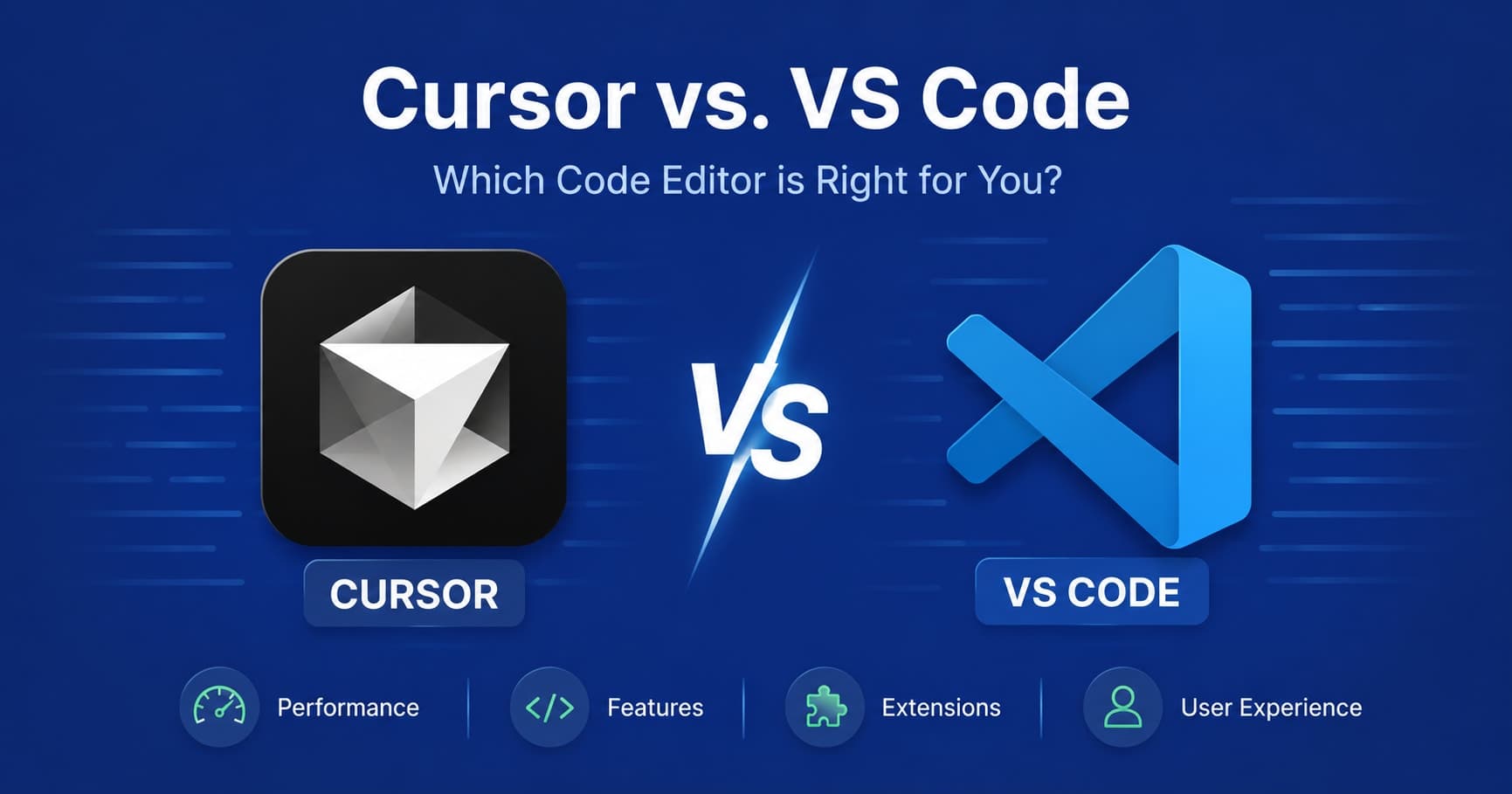
Cursor vs VS Code comes down to one key difference: AI depth. Cursor is a fork of VS Code built from the ground up for AI pair programming, with codebase-aware chat and multi-file edits built in. VS Code is a flexible open-source IDE that adds AI through extensions like GitHub Copilot. If you write a lot of code daily and want AI deeply integrated into every step, Cursor has the edge. For developers who want flexibility and a familiar setup, VS Code remains the stronger choice.
What is VS Code and why is it so popular?
VS Code is a free, open-source code editor developed by Microsoft, first released in 2015 and now used by over 73% of developers worldwide according to the Stack Overflow Developer Survey. It runs on Windows, macOS, and Linux.
Think of VS Code as a blank canvas. Out of the box it handles syntax highlighting, Git integration, and a built-in terminal. Its real power comes from its extension marketplace — over 50,000 extensions let you turn it into anything from a Python IDE to a full React development environment.
VS Code is fast, lightweight, and deeply customizable. It has become the default starting point for web developers, data scientists, and DevOps engineers alike. The community support and documentation are unmatched, which is a big reason why so many developers stick with it even as newer tools emerge.
What is Cursor and how is it different?
Cursor is an AI-first code editor launched by Anysphere in 2023. It is built directly on top of VS Code — meaning it looks, feels, and behaves like VS Code in almost every way. You can import your VS Code settings, themes, and most extensions in minutes.
While VS Code relies on third-party extensions like GitHub Copilot for AI features, Cursor bakes AI into the core of the editor. Its flagship features include codebase-aware chat — ask questions about your entire project, not just the open file — multi-file editing, and an AI terminal that understands your shell errors. In 2026, Cursor supports models like GPT-4o and Claude natively.
The result is an experience where VS Code + AI feels bolted on, while Cursor feels purpose-built for AI pair programming. That said, Cursor is a paid product after the free trial, while VS Code itself is completely free.
Cursor vs VS Code — key differences explained
Here is a direct breakdown of where these two editors differ most:
- AI integration: Cursor has native, codebase-aware AI built in. VS Code relies on extensions like GitHub Copilot or Continue.dev for AI autocomplete and chat.
- Multi-file editing: Cursor's Composer feature lets you describe a change and apply it across multiple files at once. VS Code has no equivalent native feature.
- Context window: Cursor can index your entire codebase and reference it in chat. Copilot in VS Code typically works on the current open file or selected code only.
- Extensions: VS Code has 50,000+ extensions. Cursor supports most VS Code extensions but not all — some niche extensions may not work perfectly.
- Price: VS Code is completely free. Cursor offers a limited free tier, with the Pro plan at $20 per month. GitHub Copilot costs $10 per month separately for VS Code users.
- Performance: VS Code is marginally lighter. Cursor adds AI processing overhead, though on modern hardware the difference is barely noticeable.
How to decide which editor to use
Choosing between Cursor vs VS Code does not have to be complicated. Walk through these steps to find the right fit for your workflow:
- Assess how much you code daily. If you spend 6+ hours a day writing code, AI assistance has a bigger impact on your productivity. Cursor pays off more the more you use it. If you code occasionally, VS Code with a free Copilot trial may be enough.
- Check your extension requirements. List your top 10 most-used VS Code extensions. Visit the Cursor documentation to confirm they are supported. Most popular extensions work fine, but some niche tools may not.
- Try the Cursor free trial. Cursor offers a two-week free trial with no credit card required. Import your VS Code settings, use it on a real project, and measure whether you actually write code faster.
- Evaluate your team setup. If your team is standardized on VS Code, switching solo to Cursor means diverging from shared configs and workflows. Factor in onboarding time and team alignment before making the move.
- Consider your language and framework. Cursor's AI works best with JavaScript, TypeScript, Python, and Go. If you work in a niche language with limited AI training data, the productivity gains may be smaller.
- Format your configs before switching. Migrating settings means editing JSON config files. Use the free JSON Formatter on ToolsRacks to validate and clean up your settings.json before importing it into Cursor.
Tips for getting the most out of VS Code + AI in 2026
Whether you stay on VS Code or move to Cursor, these tips will help you get the most out of AI-assisted coding in 2026.
Use inline chat, not just autocomplete
Most developers only use AI for line-by-line autocomplete. In both Cursor and VS Code with Copilot, the inline chat feature lets you highlight a function and ask it to be rewritten, optimized, or documented. In our testing, this cuts refactoring time by roughly 40% on repetitive tasks.
Index your codebase early
In Cursor, run the codebase indexing step as soon as you open a new project. This gives the AI context about your folder structure, naming conventions, and existing functions. Without it, AI suggestions are generic. With it, they feel like they came from a teammate who knows your project.
Write better prompts for better code
AI code editors are only as good as the instructions you give them. Instead of typing fix this, try: refactor this function to use async/await and add error handling. Specific prompts produce specific, usable results. According to GitHub's 2023 research, developers who prompt clearly complete tasks up to 55% faster.
Keep your extensions lean
In 2026, one of the most common complaints about VS Code performance is extension bloat. More than 30 active extensions can noticeably slow startup time. Audit your extensions every quarter and disable ones you have not used in 30 days.
Use keyboard shortcuts consistently
Both editors support extensive keyboard shortcuts. Learning just 10 core shortcuts — for navigation, multi-cursor editing, and terminal toggle — can save 15 to 20 minutes daily. Both Cursor and VS Code share the same default keybindings, so your muscle memory transfers between them.
Cursor vs VS Code — which is simpler for everyday developers?
For everyday developers — those building web apps, writing scripts, or maintaining existing codebases — VS Code remains the simpler and more reliable choice. Its setup takes minutes, its extensions are battle-tested, and its documentation covers almost every scenario you will encounter.
Cursor shines for developers doing heavy AI pair programming: building new features from scratch, exploring unfamiliar codebases, or writing complex logic that benefits from multi-file context. The setup is equally simple since it imports your VS Code environment, but the AI features require a learning curve to use effectively.
ToolsRacks processes everything in your browser — your files and data never leave your device. We believe developer tools should be simple and fast, and the same principle applies to editor choice. If VS Code already works well for you, do not switch just because Cursor is trending. Switch when you have a specific problem that Cursor's AI features genuinely solve.
Common mistakes developers make when switching editors
- Switching without a clear reason: Many developers switch to Cursor out of FOMO, not because they had a real problem with VS Code. Define what you want to improve first, then evaluate whether Cursor actually solves it.
- Not importing settings properly: Cursor supports VS Code settings import, but many developers skip this step and start from scratch. This wastes hours re-configuring themes, keybindings, and linting rules you already had set up perfectly.
- Ignoring the context window limits: Cursor's codebase indexing has limits on very large monorepos. Developers with very large codebases sometimes find the AI context less accurate. Test on your actual project before fully committing.
- Expecting AI to replace understanding: AI autocomplete in both editors is a productivity tool, not a replacement for understanding your own code. Accepting AI suggestions blindly leads to subtle bugs that are hard to trace later.
Frequently asked questions about Cursor vs VS Code
Is Cursor just VS Code with AI added on?
Yes, essentially. Cursor is a fork of VS Code, built on the same foundation. The difference is that Cursor integrates AI at the application level rather than through an extension. This enables deeper features like codebase-aware chat and multi-file editing that extensions alone cannot match.
Can I use GitHub Copilot inside Cursor?
No. Cursor uses its own AI models including GPT-4o and Claude, and does not support the GitHub Copilot extension. If your organization has a Copilot license, you would need to account for that cost difference before switching to Cursor.
Is VS Code with AI as good as Cursor?
It depends on your use case. For simple autocomplete and quick suggestions, VS Code with GitHub Copilot is excellent. For multi-file edits and codebase-wide context, Cursor currently does it better. In 2026, the gap is narrowing as Microsoft continues adding AI features natively to VS Code.
Is Cursor free to use?
Partially. Cursor has a free tier with limited AI requests per month. The Pro plan at $20 per month gives unlimited fast requests and access to the latest AI models. VS Code itself is free, but GitHub Copilot adds $10 per month on top of that.
Will switching to Cursor break my VS Code extensions?
Most popular extensions work in Cursor without any modification. However, some extensions that depend on VS Code internal APIs may not function correctly. Test your critical extensions during the free trial period before fully committing to the switch.
People also ask
What is the main advantage of Cursor over VS Code?
Cursor's main advantage is codebase-aware AI. It can read your entire project and make edits across multiple files at once — something VS Code extensions cannot do natively without significant manual setup.
Does Cursor slow down your computer compared to VS Code?
Cursor uses slightly more memory due to AI processing, but on any machine with 8GB RAM or more the difference is minimal. Most developers do not notice a meaningful performance gap in everyday coding work.
Can I use Cursor for free indefinitely?
Cursor offers a free tier with limited AI completions per month. Heavy users will likely hit those limits quickly. For full AI access, the $20 per month Pro plan is required once the free trial period ends.
Choosing between Cursor vs VS Code is ultimately about matching the tool to your workflow. VS Code is the gold standard for flexibility, extension support, and community resources. Cursor is the better choice if you want deep native VS Code + AI integration and do work where AI pair programming delivers real daily value. Both editors are excellent — the right one is whichever makes you more productive on your actual projects.
Whatever editor you use, keep your developer toolchain sharp. Try our free JSON Formatter to validate config files, API responses, and settings exports instantly — no account needed, works right in your browser.